Troubleshooting

These troubleshooting posts are for people with phones, tablets, laptops, desktops or game consoles that will not charge, show a black screen, overheat or are not recognized. Each post gives safe checks to try at home and explains when the device needs a repair shop. Typical repair costs drawn from prices shops publish help readers decide what to do next. Each post ends with local shops readers can compare on the directory.

Posts

Illustration of a smartwatch with the Apple logo on its dark screen resting on a wooden nightstand.

Apple Watch stuck on Apple logo: what should you do?

For an Apple Watch stuck on the Apple logo, hold the side button and Digital Crown until the screen turns black and the logo reappears, then release both. If it persists after a force restart, unpair and pair again. Get service if it's still stuck on the Apple logo after Apple's troubleshooting steps.
4 min read

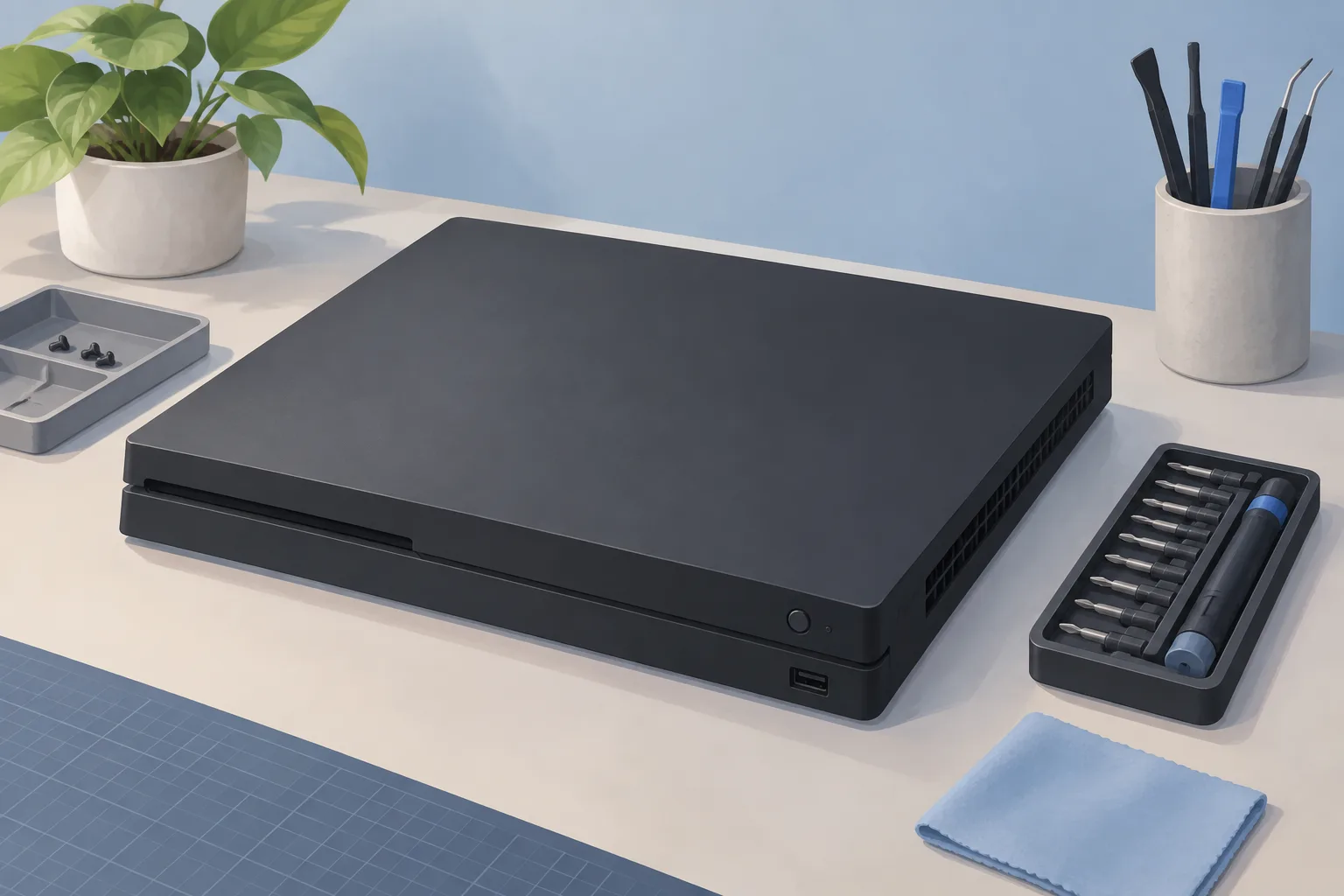
Illustration of a slim black game console on a repair bench beside a screwdriver set.

PS4 controller not connecting: checks before repair

If your PS4 controller is not connecting, connect the included USB cable and press the PS button if the controller is off. Try resetting your controller if you're having trouble pairing it with your console, as PlayStation recommends. Using it with another console requires pairing again.

3 min read

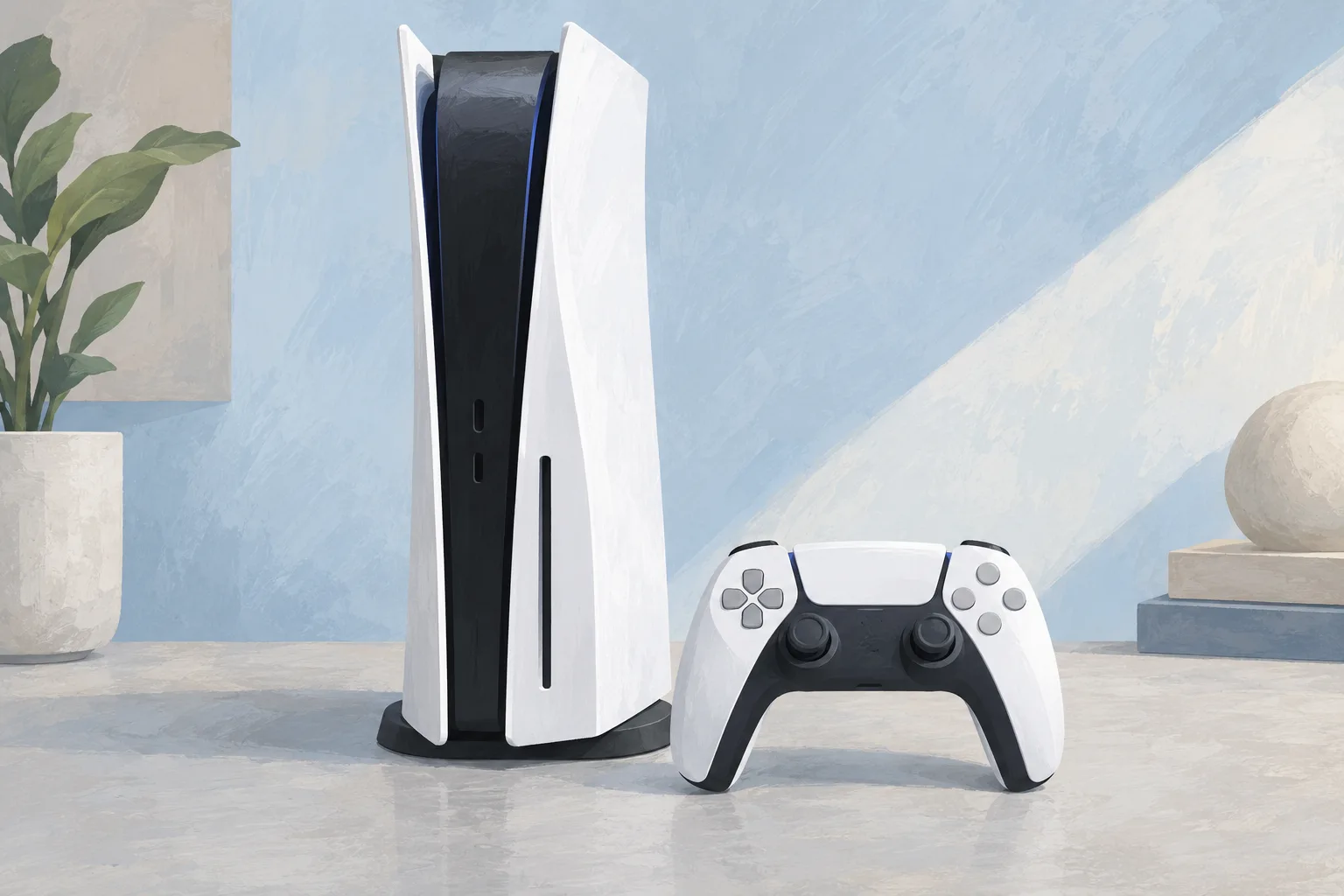
Illustration of an upright white and black game console beside a controller against a pale blue background.

PS5 controller drift: What to try before joystick repair

For PS5 controller drift, try a reset, as PlayStation recommends for general controller problems. If you can operate your console, check that its system software is updated to the latest version. Replacing a drifting DualSense joystick requires intermediate soldering skills, so use a shop if you don't have them.

4 min read

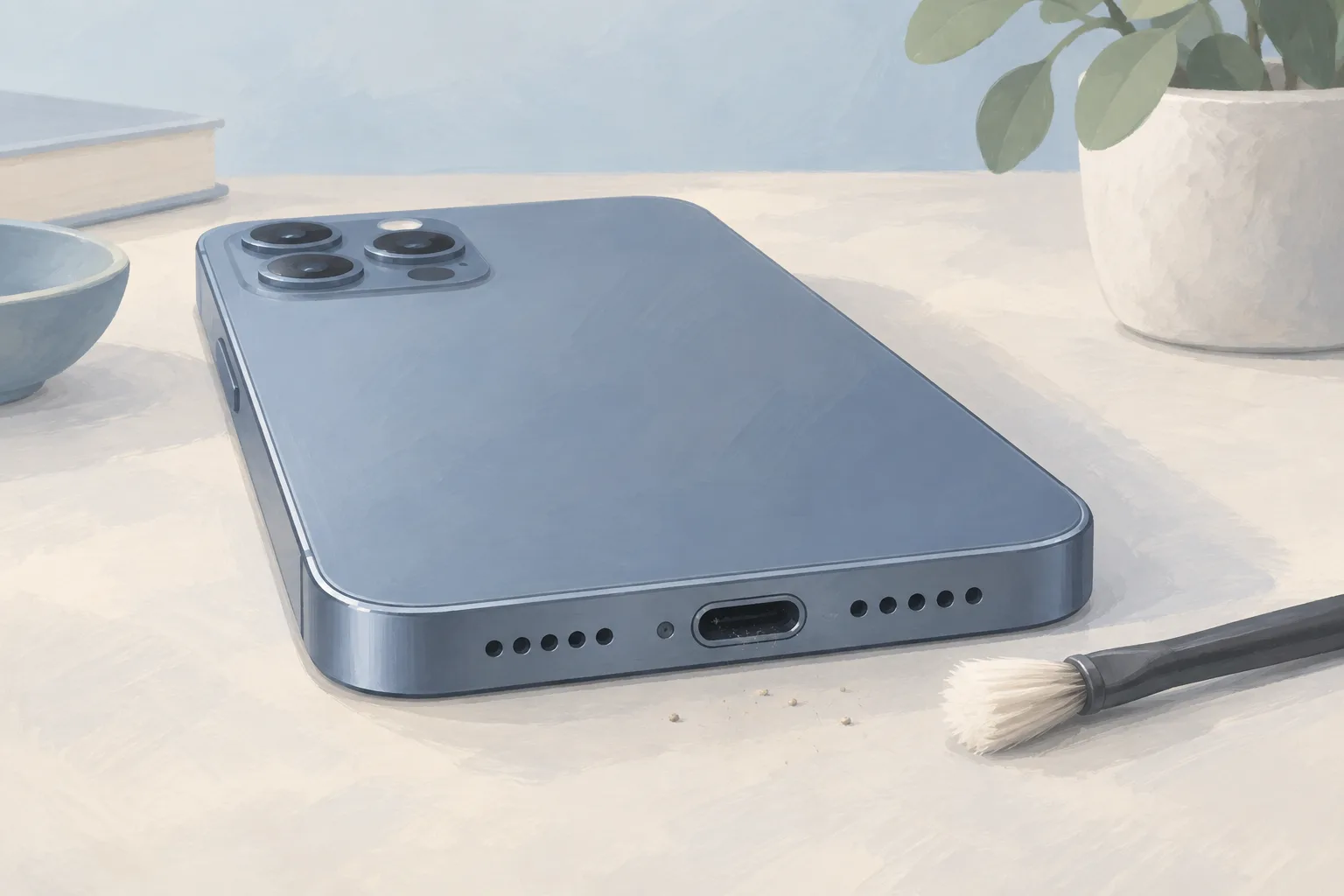
Illustration of a smartphone lying face down on a light desk with its charging port beside a soft brush.

How to Clean an iPhone Charging Port Before Repair

Cleaning an iPhone charging port means removing debris, then plugging the cable in firmly, as Apple advises. Use a brand-new toothbrush, toothpick or another non-conductive tool for trapped lint, per iFixit. If cleaning doesn't restore charging, the port may be faulty and need to be replaced.

3 min read

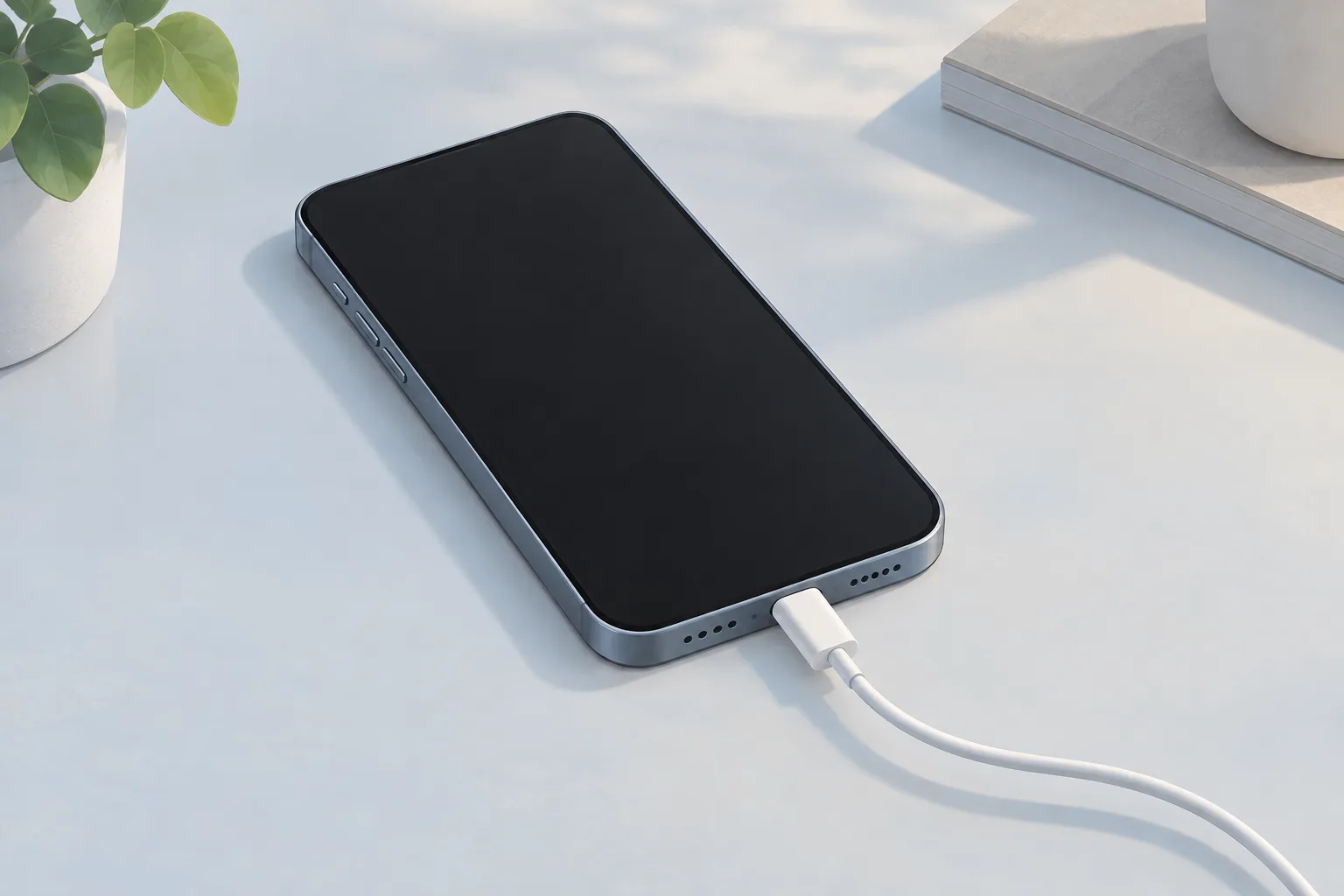
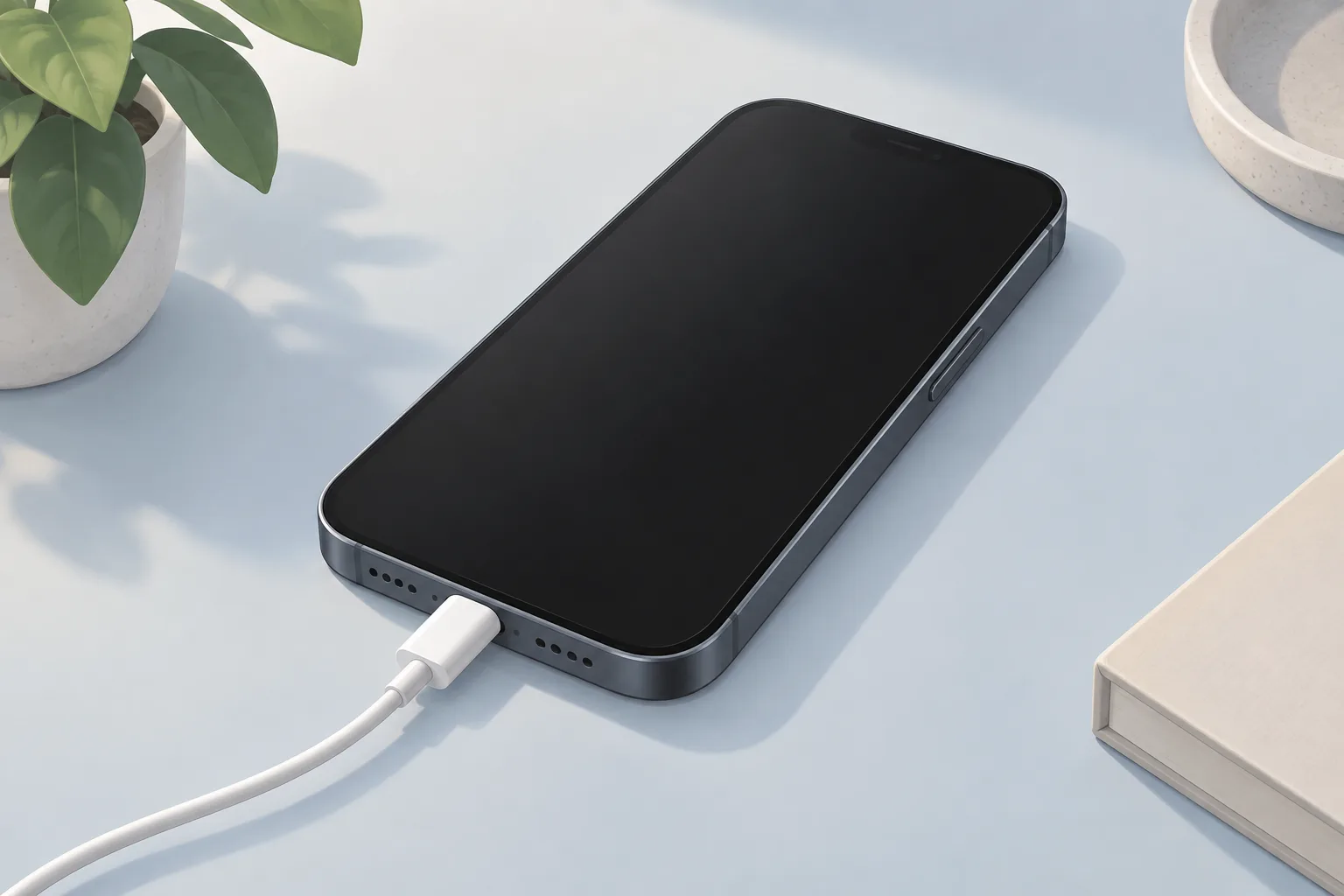
Illustration of a smartphone with a dark screen and a charging cable plugged into its port on a light tabletop.

iPhone charging port not working: what should you check?

For an iPhone charging port that's not working, start with Apple's charging cable, USB adapter and wall outlet checks. Inspect the cable and adapter for damage, including breakage or bent prongs. If your iPhone still won't power on or charge after Apple's charging and restart checks, it might need service.

4 min read

Illustration of a smartphone with a dark screen on a light desk, connected by a charging cable to a wall adapter.

Why does my phone say it's charging when it's not?

A phone that says it's charging when it's not should be connected to another charger if it's an Android. On a Galaxy that's too hot, charging may pause, while enabled Battery protection may cap its charge. If a Galaxy won't charge with another Samsung charger and cable made for it, Samsung says to get its hardware checked.

4 min read

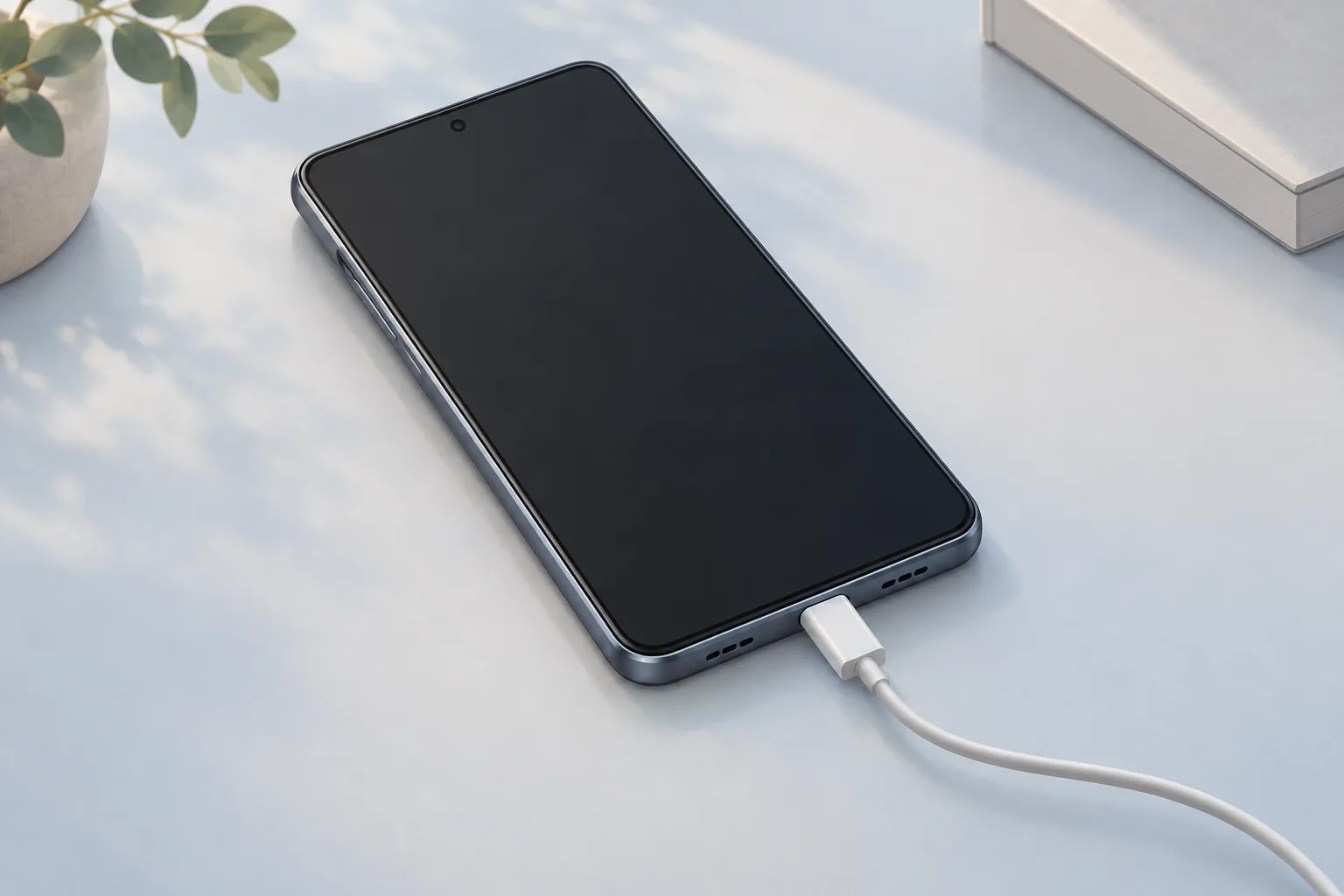
Illustration of a smartphone with a dark screen and charging cable plugged in on a pale blue surface.

Android Phone Not Charging? Checks Before Repair

If your Android phone is not charging, turn it off for 30 seconds, then power it on and test charging again, following iFixit's advice. Check its port for obstructions or damage if it charges wirelessly. If its maximum battery capacity is below 80%, look into battery replacement.

4 min read

Illustration of a smartphone with a dark screen and charging cable plugged into its port on a pale desk.

Why is my phone not charging past 80?

A phone not charging past 80 can be an iPhone waiting until needed because of Optimized Battery Charging. iPhone charging above 80 percent might be limited if the battery's too warm, and iPhone 15 and later can have a charge limit. If your iPhone still won't charge or power on after Apple's checks and charging sequence, it might need service.

4 min read

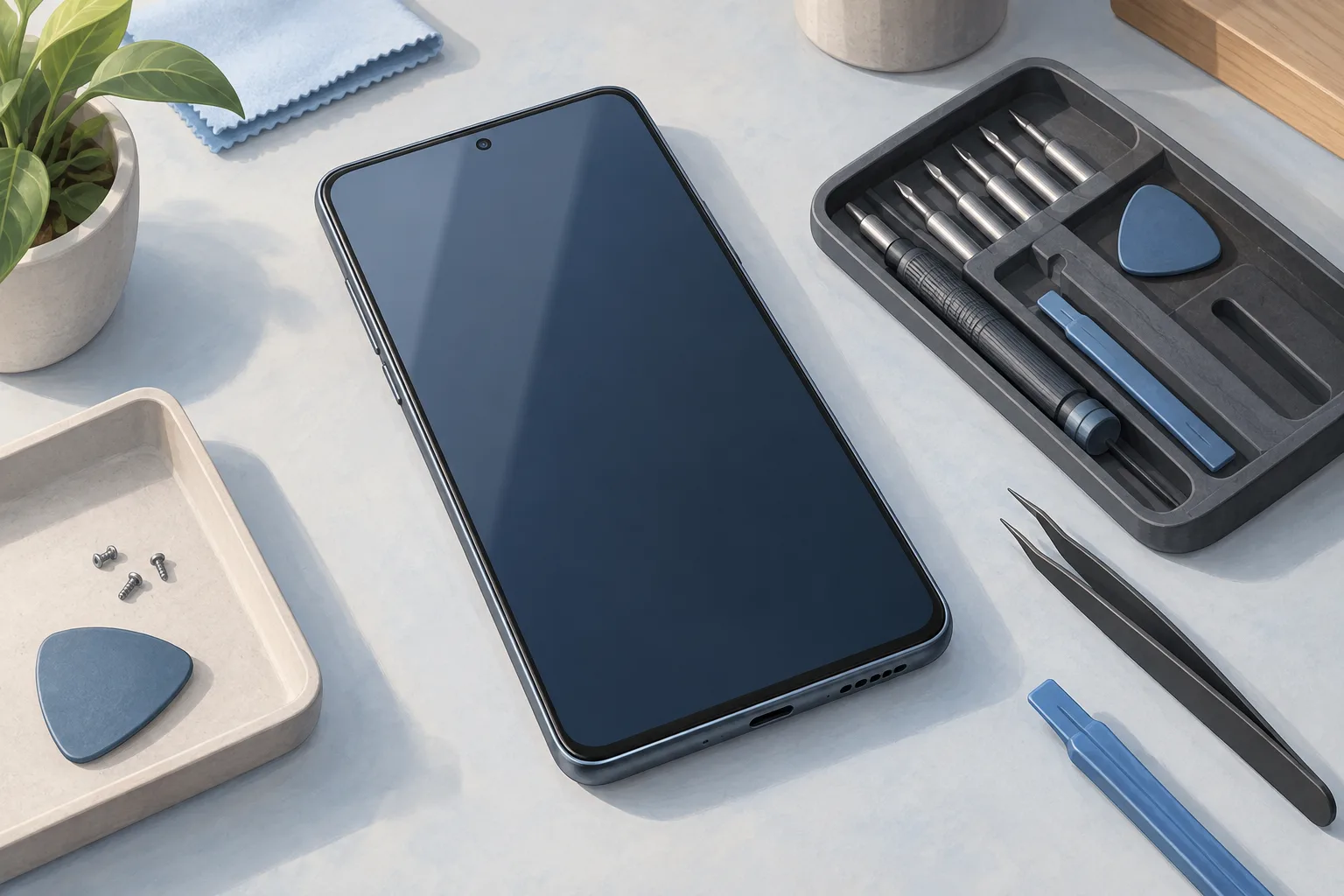
Illustration of a smartphone resting on a repair bench beside a screwdriver set and other repair tools.

Samsung moisture detected won't go away: what should you do?

If Samsung's moisture detected warning won't go away, power off your phone and leave it to dry completely. Unplug the phone from its charger, then wipe it with a dry cloth. If Samsung's troubleshooting instructions don't work, contact Samsung Support or take the phone to a Samsung Service Center.

4 min read

Illustration of a smartphone with a dark screen and a charging cable plugged into its port on a pale blue surface.

Samsung wireless charging not working: what should you check?

If Samsung wireless charging is not working with a Samsung charger, check that your phone supports wireless charging. Check for debris on the phone's back and the charger's surface. If your compatible phone still won't charge wirelessly after troubleshooting, Samsung directs you to a service center or repair.

4 min read

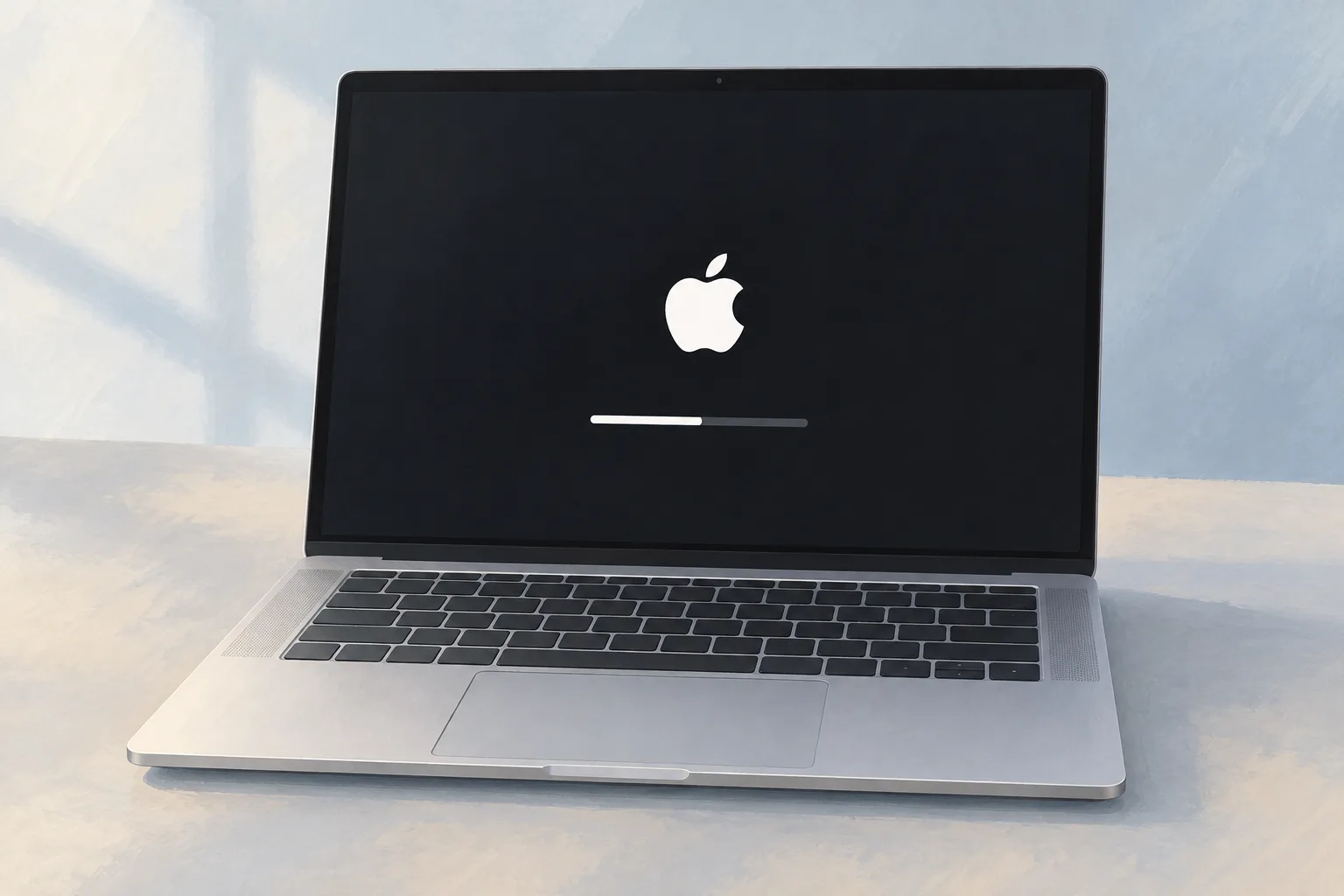
Illustration of an open aluminum laptop with the Apple logo and a half-filled progress bar on its dark screen.

MacBook stuck on Apple logo: what should you try?

A MacBook stuck on the Apple logo during a macOS update should be left to finish overnight if needed, as Apple recommends. If startup never progresses, hold the power button for up to 10 seconds until it turns off. A MacBook still showing the logo after reinstalling macOS from Recovery might need service.

4 min read

Illustration of an open aluminum laptop with a black screen on a pale surface against a soft blue background.

MacBook black screen: what to check before repair

For a MacBook black screen at startup when the Mac seems on, follow Apple's order: restart, Recovery disk repair, then reinstall macOS if it persists. First, hold the power button for up to 10 seconds until it turns off, then turn it on again. If it still starts to a blank screen afterward, it might need service.

4 min read

Illustration of a smartphone with a dark screen and a charging cable plugged into its port on a pale blue desk.

iPhone not charging: What should you check first?

For an iPhone not charging, start with the cable, adapter, outlet and charging port debris checks from Apple. First, inspect the cable and adapter for damage, including breakage or bent prongs. If your iPhone still won't power on or charge after Apple's charging and force-restart sequence, it might need service.

4 min read

Illustration of a closed silver laptop on a pale blue desk with a charging cable connected to a US wall outlet.

MacBook Won't Turn On? What to Check Before Repair

For a MacBook that won't turn on, check for cable damage, secure connections at the Mac and a working outlet, then try another compatible adapter if available. If it still doesn't turn on after you finish the checks, Apple says the MacBook might need service.

3 min read

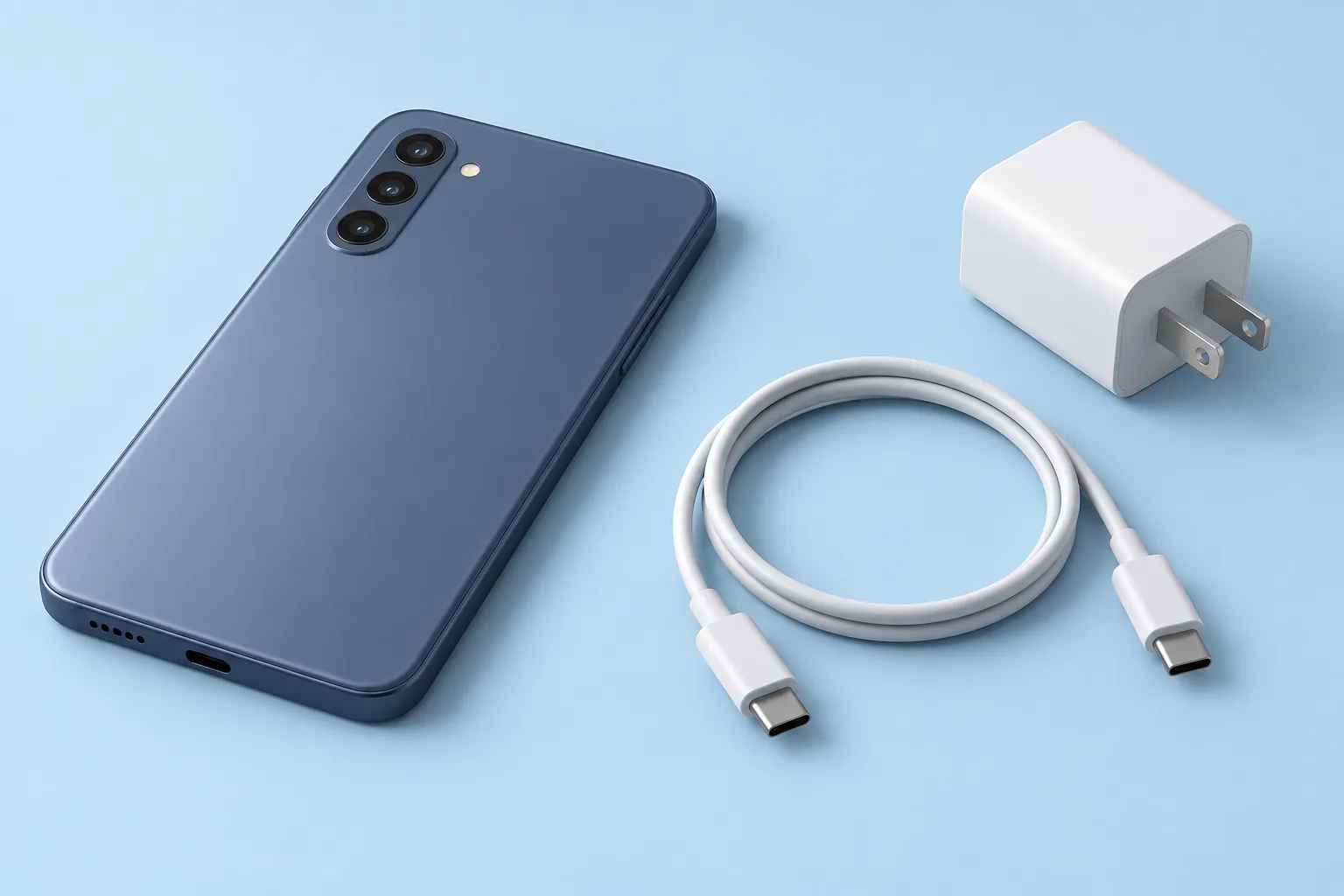
Illustration of a face down smartphone beside an unplugged USB-C cable and US wall adapter on a pale blue background.

Phone Not Charging? What Should You Check First?

A phone that won't charge needs checks: Apple's iPhone steps are to secure wall outlet, adapter and cable connections, remove port debris, then plug in firmly. Charge for half an hour, force restart if it won't power on, then charge another half hour, after which failure to charge might mean it needs service.

3 min read