Samsung moisture detected won't go away: what should you do?
If Samsung's moisture detected warning won't go away, power off your phone and leave it to dry completely. Unplug the phone from its charger, then wipe it with a dry cloth. If Samsung's troubleshooting instructions don't work, contact Samsung Support or take the phone to a Samsung Service Center.
Key takeaways
- Keep the phone off while it dries after a moisture warning.1
- Try clearing the USB cache if charging trouble persists after the phone is completely dry.1
- Try another cable because moisture in the cable can trigger the icon.1
- Use wireless charging only on a supported device, and thoroughly dry the phone first.2
What does moisture detected in the charging port mean?
Your Samsung phone won't charge through its port when water is present or detected moisture exceeds a set point, protecting it from damage and corrosion. The water drop icon signals moisture detection. A pop-up appears if you connect a charger while moisture is detected in the port.1, 2
Connecting a charger while the port is wet can also set off an alarm with instructions to disconnect it. Unplugging the charger stops the alarm.2
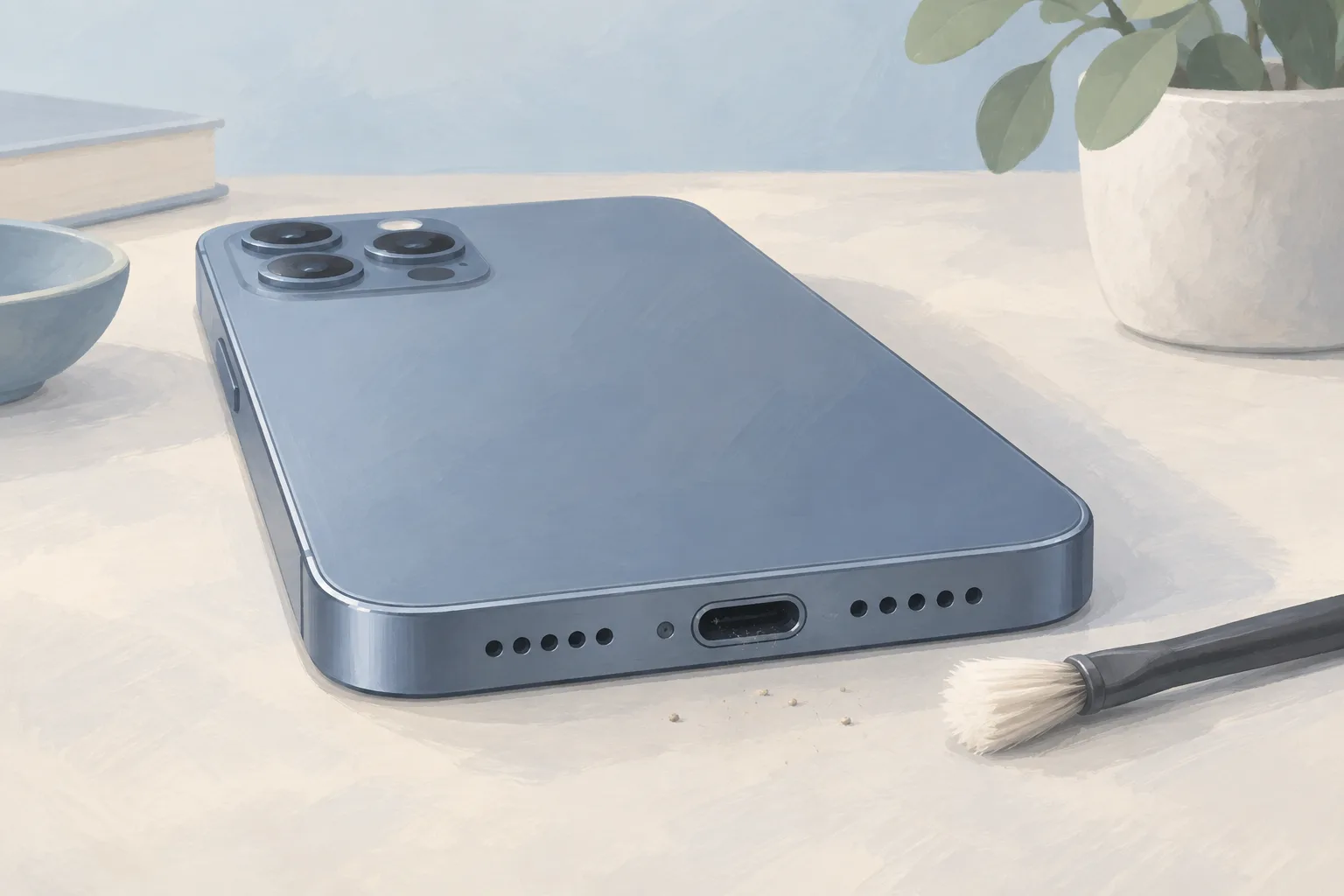
Check the cable and port for moisture. Lint or trash can get caught inside the port and become packed down as you keep plugging in a charging cable.3
What should you do first when the moisture warning appears?
If your Samsung phone shows the water drop icon, turn it off. Let it dry completely. Disconnect the charger and wipe the phone with a dry cloth. Don't charge while it's wet or anywhere it could get wet, and don't handle charging equipment with wet hands.1, 2
Point the port down
Samsung recommends 5 to 10 gentle shakes to release excess moisture.1
Set it on a cloth
Choose a well-ventilated place. A fan is another drying option.1
Keep objects out
Putting anything inside the charging port can damage it.2
Don't shake the phone hard. Excessive force can damage it. A cotton swab shouldn't go into the port to soak up liquid, and compressed air may push liquid farther inside.1, 3
What if moisture detected stays on after the phone dries?
Try clearing the USB cache if your phone is completely dry but the water drop icon remains and charging trouble continues. Samsung's cache instruction is to tap Clear cache at the bottom right of the screen. Menus and screenshots can differ with the phone model and software version.1
Before trying Samsung's troubleshooting recommendations, check that the phone's software and related apps are up to date. Open Settings, then Software update to check the phone's software. Google or Samsung may have patched a bug or changed the phone's software to correct an issue affecting charging.1, 3
Can you use wireless charging while the warning is showing?
On a phone that supports it, wireless charging remains an option when moisture in the charging port stops you from charging by cable. Thoroughly dry the whole phone first. Moisture or foreign objects inside the port don't affect wireless charging, whose circuitry doesn't connect directly to the physical port.2, 3
When should you take your Samsung phone to a shop?
Contact Samsung Support or visit a Samsung Service Center if the troubleshooting instructions don't work. If the port is dry and clear of conductive debris, the charging port or the internal assembly attached to it may be faulty. Check around the port for damage or signs of liquid entry.2, 3
Replacing the charge port daughterboard is iFixit's repair step if you find damage or nothing else has fixed the problem. Liquid can creep into this area despite water resistance because the port sits near the phone's edge and has several possible entry points.3
| Fix | Price | Shop or DIY |
|---|---|---|
| Dry the phone with a cloth | Free | DIY: Samsung gives drying steps |
| Try a cable or charger you already own | Free | DIY: another cable can address the alert |
| Restart after the port dries | Free | DIY: Samsung recommends a restart |
| Clear the USB cache | Free | DIY: Samsung recommends it after drying |
| Charging Port Repair | Ask a shop for a quote | Shop: persistent trouble calls for service |
Questions
Can the moisture warning appear if the phone never got wet?
Yes. High humidity can trigger the water drop icon even when your phone hasn't come into contact with water. Try drying the phone after humidity exposure. If the charging port is completely dry, restart it to see whether the warning clears.1
How long does water take to evaporate from the charging port?
Water naturally evaporates from a Samsung phone's charging port within approximately 1 to 2 hours. If liquid other than fresh water enters a water-resistant phone's port, rinse it with fresh water and dry it thoroughly with a dry, soft cloth.2
Can a different cable help clear the moisture warning?
Yes, moisture in the cable may be triggering the icon, so try using a different cable to charge your phone. A cable fault can trigger it, too. Try another charger or accessory. Allow time for any moisture transferred during the cable connection to evaporate from the port.1, 3
Find a repair near you
Sources
- My device displays a water drop icon and will not charge, Samsung. accessed Oct 7, 2026
- What to do if there is moisture in your water-resistant Samsung phone or tablet, Samsung. accessed Oct 7, 2026
- Samsung Phone Moisture Detected in Charging Port, iFixit. accessed Oct 7, 2026
- RepairSeeker data, RepairSeeker. accessed Oct 12, 2026