
Find Chromebook Repair Near You
As of October 2026, 14 shops in California and Texas have Chromebook repair on their website service lists. According to their websites, people who haven't made an appointment are welcome to walk in at 14 shops.
Chromebook Repair by city
Shops that list Chromebook repair
No town has enough of them for its own page yet, so here they are directly. Not paid placements.
- CPR Cell Phone RepairChula Vista, CA
- CPR Cell Phone RepairDallas, TX
- CPR Cell Phone RepairHouston, TX
- CPR Cell Phone RepairHouston, TX
- CPR Cell Phone RepairHouston, TX
- CPR Cell Phone RepairMesquite, TX
- CPR Cell Phone RepairMissouri City, TX
- CPR Cell Phone RepairPoway, CA
- CPR Cell Phone RepairRichmond, TX
- CPR Cell Phone RepairRosenberg, TX
- CPR Cell Phone RepairSan Antonio, TX
- CPR Cell Phone RepairSan Jose, CA
- CPR Cell Phone RepairSan Jose, CA
- CPR Cell Phone RepairWylie, TX
Common Chromebook repair problems
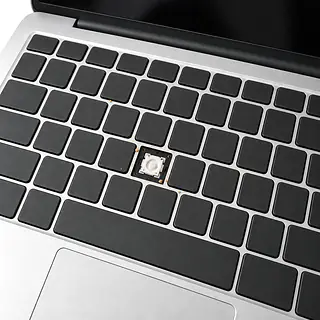
Keyboard misses or repeats letters
Sticky keys after a soda spill point to liquid under the keyboard. Mention the spill even if typing seemed normal afterward. Without a spill, try restarting first.
Find a repair near you: Keyboard misses or repeats letters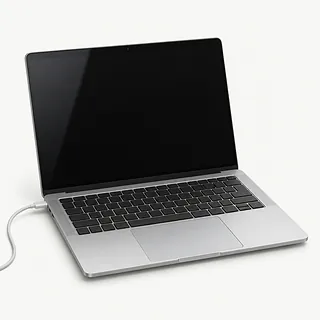
Chromebook won't start
Check the charger's connections before blaming the computer. A completely drained battery may need charging before the power button gets a response.
Find a repair near you: Chromebook won't startChromebook shuts off when unplugged
Running on wall power but dying as you pull the plug points toward a battery that no longer holds charge. Ask for a battery test before ordering its replacement.
Find a repair near you: Chromebook shuts off when unplugged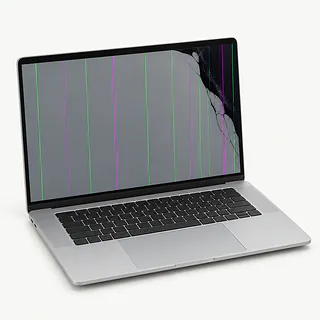
Screen flashes or stays black
Flickering tied to lid movement suggests trouble with the screen connection. A failing panel also causes flickering. For a dark display, check brightness first.
Find a repair near you: Screen flashes or stays black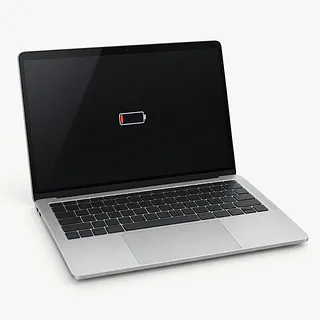
Battery isn't charging
A frayed charger cord or loose port can interrupt charging. Bring the adapter so the shop can check it alongside the Chromebook.
Find a repair near you: Battery isn't charging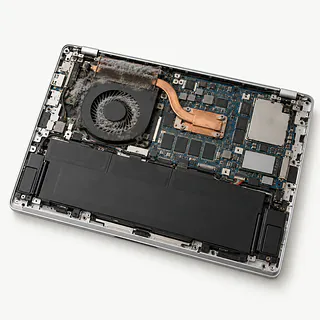
Chromebook gets too hot
Soft bedding holds heat against the case and may cover vents. Set it on a table. On models with fans, dust inside can explain persistent roaring.
Find a repair near you: Chromebook gets too hot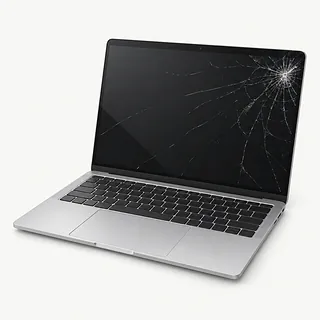
Screen has cracks and lines
Colored stripes beside a crack mean the display panel is broken. Plastic pulling apart near a hinge needs attention too.
Find a repair near you: Screen has cracks and lines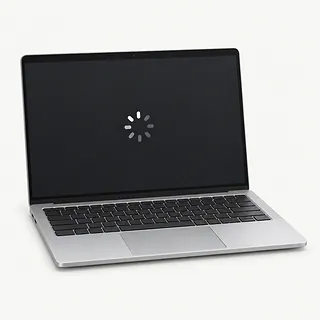
Tabs and apps feel slow
Each open app or browser tab uses memory. Close the ones you're done with, then check for ChromeOS updates if typing still lags.
Find a repair near you: Tabs and apps feel slow


What Chromebook repair involves
Bring the adapter you use, even if you suspect the Chromebook itself is broken. A technician can try a working charger to see whether power reaches the computer. For missing letters, testing the troublesome keys helps pin down what needs changing.
Parts get ordered by model number, so take a photo of the label if it's hard to read. Two Acer Chromebooks can need different keyboards, batteries or screens. A split cover beside a hinge belongs in the repair quote too.
A reset needs your approval before anything gets erased. Powerwash clears local storage, apps and settings, including files kept in Downloads, so copy anything you need elsewhere first. You'll sign back in afterward, and your Google Drive files remain there. Before pickup, ask for checks that match the work, such as a steady screen through normal lid movement or starting without the charger after battery replacement.
Is your Chromebook worth repairing
A battery replacement won't cure a Chromebook that already struggled to load your classwork. Think back to how it ran before it broke. If typing and browsing worked well, fixing one failed part may be enough.
Check the older model's update schedule before spending on repairs. In Settings, open About ChromeOS, choose Additional details and read Update schedule. Past that cutoff, Google's technical support ends. Get a written quote naming available replacement parts, including any cracked hinge mounts or worn keys that also need work.
Save school assignments and photos before retiring the computer. Open the copies stored elsewhere to check they're actually there. If the Chromebook holds the only copy and won't boot, ask about recovering it before agreeing to erase anything.
Before agreeing to Chromebook repair
Can you test it without opening my files?
Ask which checks need a signed-in account and if Guest mode would work. Point out anything saved only on the Chromebook before discussing a reset.
What would I owe if I decline the work?
Finding the fault can carry a separate charge. Have that charge written down, along with the point where further work needs your permission.
What evidence points to the part you're replacing?
A black screen alone doesn't prove the display has failed. Ask what was tested and how the technician will repeat those checks before pickup.
Where will the replacement come from?
Chromebooks use parts matched to their maker and exact model. Request the part's source and condition, with touch capability specified if your screen has it.
Who handles a fault that comes back?
Read the written warranty for both hardware and installation. Check whether another round of testing is covered and which failures are excluded.
Before leaving your Chromebook
Capture the failure
Photograph any error message and write down when it first appeared. Name the keys that fail or describe a screen that goes dark during use.
Save files stored on the device
Check the Downloads folder for work that hasn't reached Google Drive. Make a separate copy if the Chromebook still runs safely, then open that copy to check it.
Sort out managed access
Ask the school or employer responsible for a managed Chromebook how repairs should be handled. Leave management settings alone.
Plan how testing gets done
Find out which checks require your account. Enter your own password if needed, and discuss alternatives to leaving it with the device.
Clear out removable items
Take out inserted storage cards and disconnect accessories. Include the power adapter for charging trouble, with its detachable cord if it has one.
Related repairs
Chromebook Repair: common questions
How do I budget for Chromebook repair?
More extensive damage may raise the price of Chromebook repair. Call to explain what's stopped working, give the model name and check how the quoted amount breaks down.
When can I expect my Chromebook back?
Since a shop may discover more damage during Chromebook repair, any initial time estimate can change. Ask over the phone how long they expect the job to take with their current workload.
Could Chromebook repair make sense even if I want another device?
Get the quoted cost first, then decide how much keeping the device is worth to you. Think about its age, damage beyond the main problem and files you care about as part of that choice.
How can I get ready for Chromebook repair?
Back up files you can reach while your device is working, and write down its exact model plus what stopped working. When booking by phone, check whether the charger should come along, the case should stay on and a passcode will be needed.
Can a cracked Chromebook screen be replaced?
Yes, if a screen that matches your Chromebook's model is available. Send the full model number before asking about parts. On touch models, find out which screen layers the shop plans to replace.
Why won't my Chromebook turn on?
An empty battery or a loose charger connection can explain a Chromebook that won't power up. Unplug and reconnect the charging equipment, then let it charge. If it stays dead, testing the charger helps show whether power is reaching the Chromebook.
Why is my Chromebook not charging?
The battery may be fine even when your Chromebook won't charge. Try another compatible charger, and mention any plug that wiggles or loses contact when nudged so the port gets checked too.
Why is my Chromebook keyboard not working?
Software trouble can stop keys from responding, so restart before assuming the keyboard is broken. If the same letters still won't type, write them down. A spilled drink matters too, since liquid can reach parts beneath the keyboard.
Why is my Chromebook screen flickering or black?
A flickering or black picture doesn't prove you need another screen. The display cable or ChromeOS could be at fault. Try restarting, and mention if the picture cuts out when you tilt the lid.
Why is my Chromebook running slow?
A busy browser can make the whole Chromebook feel sluggish without a broken part. Reduce open tabs and turn off extensions you don't need, then restart and check updates. Compare several apps or sites before describing the slowdown.