Samsung touch screen not working: What should you check?
If your Samsung touch screen is not working, follow Samsung's troubleshooting checks before using Samsung Members diagnostics or arranging service. Remove the screen protector or case and check whether touch works normally. If the issue continues after troubleshooting, visit a Samsung service center.
Key takeaways
- Remove the screen protector or case to test whether touch works normally.1
- If the Restart menu doesn't appear, hold the side and volume down keys for more than 7 seconds until the device restarts automatically.2
- If strong impact has damaged the display, stop using the device and visit a Samsung service center for inspection.2
Why is my Samsung Galaxy touch screen not working?
Screen protectors, cases, and other accessories attached to your Samsung Galaxy may affect how the screen responds to touch or recognizes gestures. Remove the protector or case. Check whether touch works normally without the protector or case before arranging screen repair. Non-genuine protectors or cases may interfere with touch and gestures, especially around the edges of the screen.1
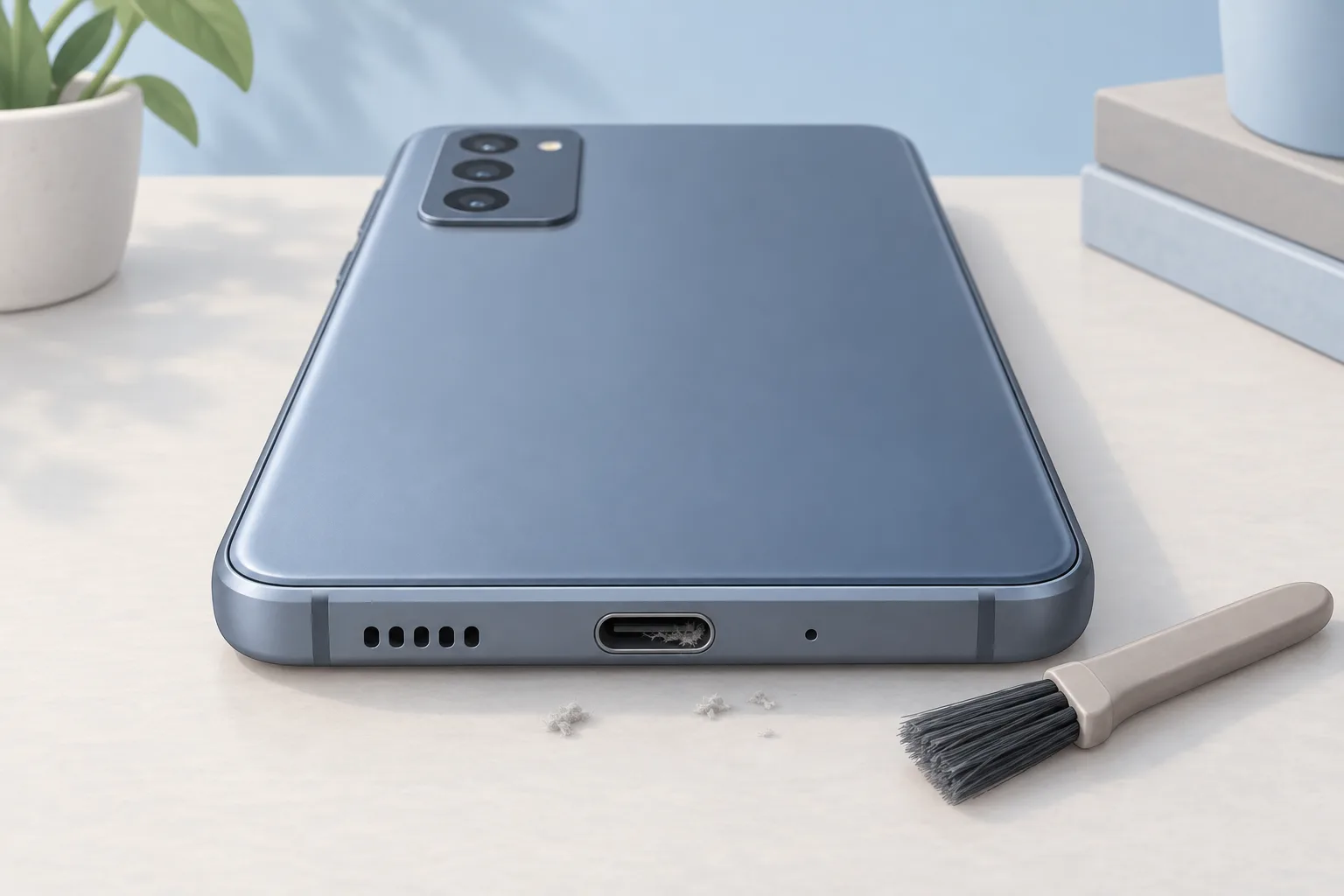
If you've attached a screen protector or tempered glass to your device and touch isn't responding normally, try turning on Touch sensitivity. Water on the screen may affect touch. If your charger is damaged, it may fail to supply power to your device, which may cause the touchscreen to malfunction.1
To see whether your phone responds to a button press on the lock screen, press a volume key and look for its indicator. Try to reach the home screen.3
How do I restart a Samsung phone when its touch screen is not working?
A temporary system error may stop a Samsung phone display from responding normally. Hold the side key and volume down key together for more than 2 seconds to bring up the menu, then tap Restart. Check the display again. Outdated software may stop the screen from responding normally.2
Hold both keys longer
If the Restart menu doesn't appear, hold the side and volume down keys together for more than 7 seconds until the device restarts automatically.2
Check for software updates
Open Settings, then Software Update, then Check for updates, and follow the on-screen instructions. A message confirms when it's up to date.1, 2
Update your apps
Outdated apps may cause display glitches. Check for app updates. Tap Update all.2
How do I test the touchscreen with Samsung Members?
If troubleshooting hasn't solved the problem, open Samsung Members, tap Support, and select Touch screen to check the touchscreen's status. Touch all the empty areas on the screen with your finger. Phone diagnostics requires the Samsung Members app. It works only on Galaxy devices.1, 2
Menu names, settings, and screen layouts may vary with your device's model and software version.1
When should you take your Samsung phone to a shop?
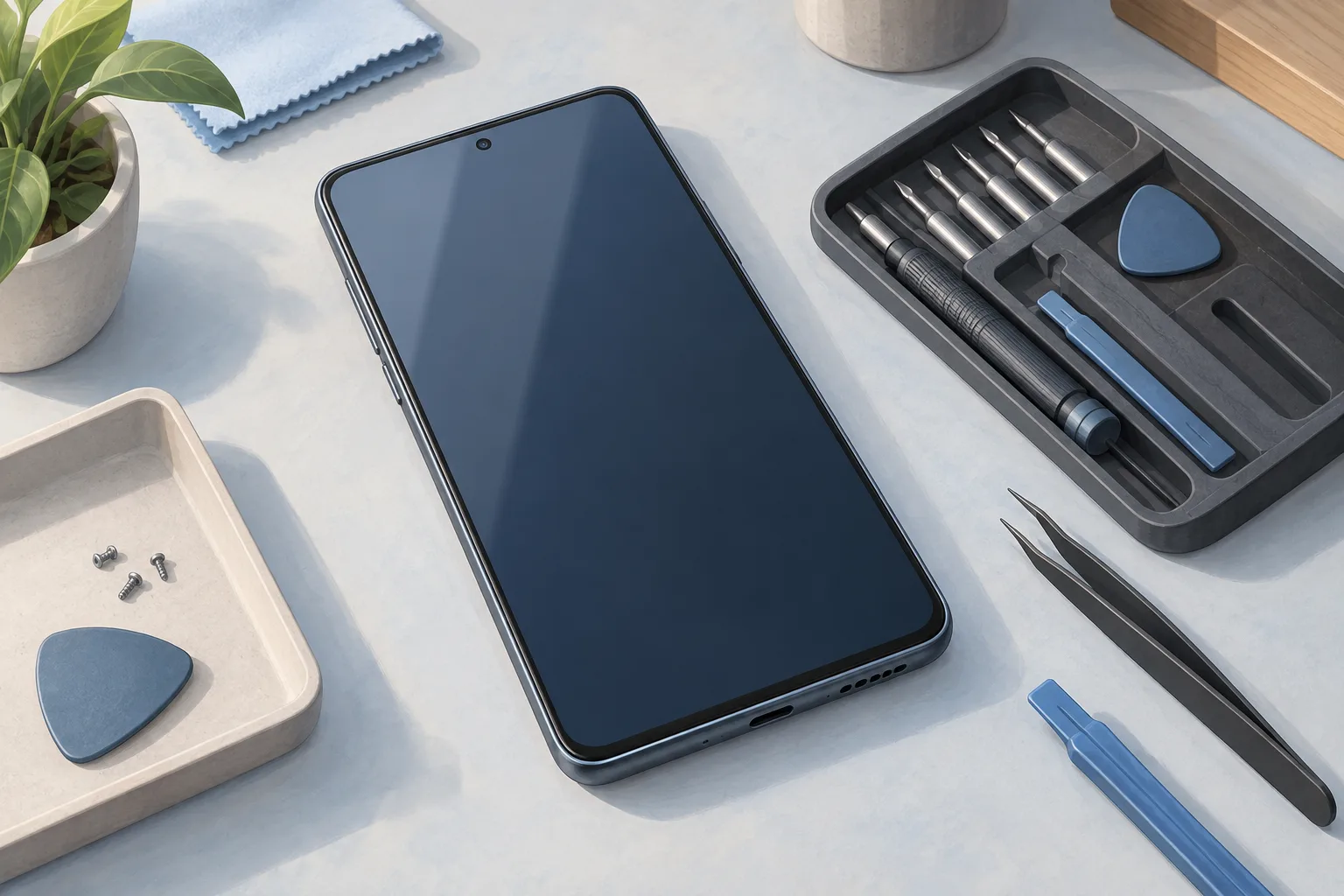
If touch still doesn't work after you've tried the troubleshooting checks, visit a Samsung service center. Suggested walk-in prices for Samsung screen repair vary by model and apply to Galaxy S22 and later. The listed prices don't include applicable taxes or fees.1, 4
| Fix | Price | Shop or DIY |
|---|---|---|
| Samsung Screen Repair | Samsung charges $99 to $289 (Galaxy S22 and later) | Shop: Samsung offers walk-in screen repair |
| Remove the protector or case | Free | DIY: Samsung lists this touch check |
| Turn on Touch sensitivity | Free | DIY: Samsung suggests it with a protector |
| Restart or force restart | Free | DIY: Samsung gives the button holds |
| Update software and apps | Free | DIY: Samsung gives update steps |
| Reset the device | Free | DIY: Samsung gives reset instructions |
Prices may also vary by region or authorized service store location.4
Questions
Which settings can affect touch on a Samsung phone?
If your phone speaks when you touch the screen and your usual touch gestures don't work normally, the TalkBack feature may be turned on. When Magnification uses a triple-tap shortcut, quick touches may be missed and the screen may respond more slowly to your touch. With full screen gestures on, the phone may read a touch as a gesture and miss the tap.1
What if my Samsung touch screen is not working after a drop?
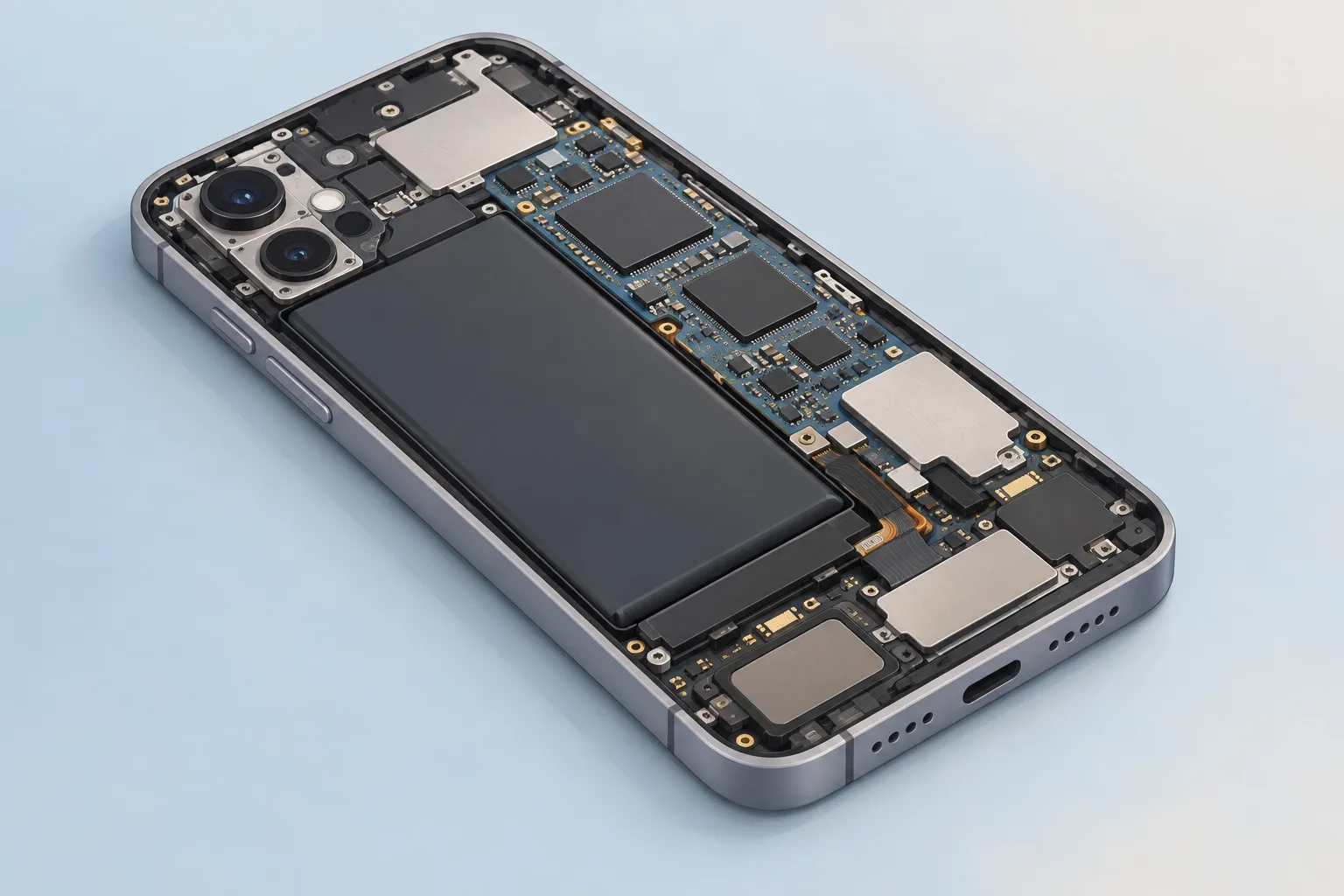
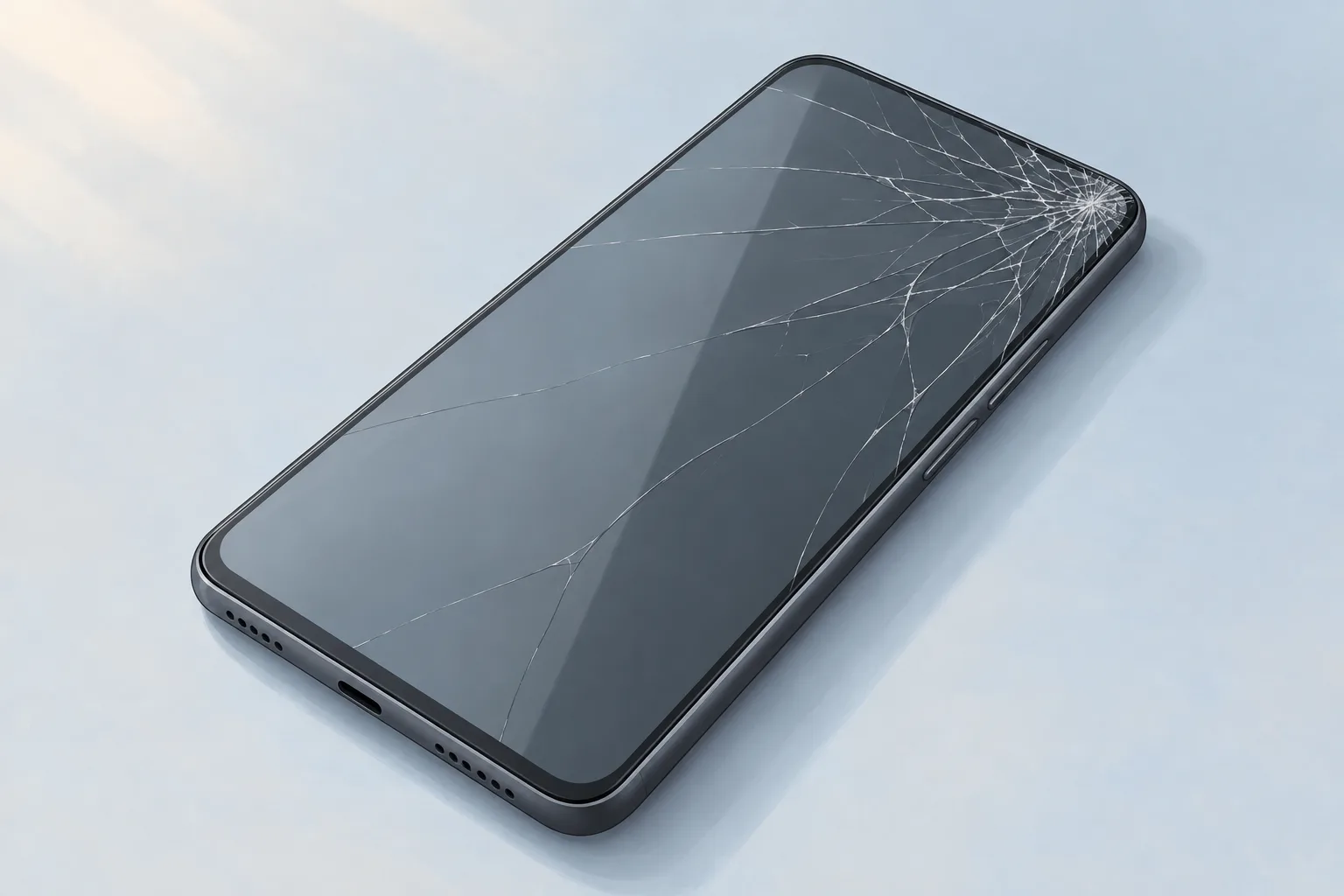
Physical damage from a strong external impact may cause your Samsung Galaxy display to stop responding normally to touch. If a strong impact has damaged the display, stop using the device immediately. Visit a nearby Samsung service center to have the device inspected.2
What should I check before resetting a frozen Samsung phone?
If an update doesn't work and you're considering a reset for a frozen phone, check the state of your backups first. Enter your Samsung account credentials to complete the reset. Once the device has reset, you'll need to go through the initial setup process.3, 1
Find a repair near you
Sources
- Troubleshoot touchscreen issues on a Samsung Galaxy device, Samsung. accessed Oct 7, 2026
- Troubleshoot display issues on your Samsung Galaxy device, Samsung. accessed Oct 7, 2026
- Samsung Galaxy Frozen Screen, iFixit. accessed Oct 7, 2026
- Cracked Screen Repair, Samsung. accessed Oct 7, 2026