iPhone No SIM available: what should you check?
An iPhone saying No SIM available should first be checked for an active wireless plan, following Apple's troubleshooting order. Restart your iPhone and check for a carrier settings update before moving to the checks for your SIM type. If the SIM alert remains after Apple's checks, you might need service.
Key takeaways
What should you check when your iPhone says No SIM available?
Check for an active wireless plan before arranging phone repair for an iPhone that says No SIM. Apple's steps cover both Invalid SIM and No SIM Card installed. After the carrier lock check, restart the phone and check for a carrier settings update.1
If a carrier settings update is available, a prompt will offer OK or Update. Select the option shown.1
Why does my iPhone say No SIM, and should I check its carrier lock?
An iPhone locked to a carrier can be used only with that carrier, so check its carrier lock as part of Apple's SIM checks. Look beside Carrier Lock on your iPhone. If the phone isn't locked, you'll see "No SIM restrictions" there.1
What if your iPhone keeps saying No SIM with an eSIM?
Contact your carrier about the SIM alert if your iPhone uses an eSIM. For No Service or Searching on an iPhone with Dual SIM, check your cellular lines. If a cellular line is missing on that Dual SIM iPhone, contact your carrier to set up an eSIM or insert a physical SIM card.1, 2
How do you check a physical card when your iPhone says No SIM?
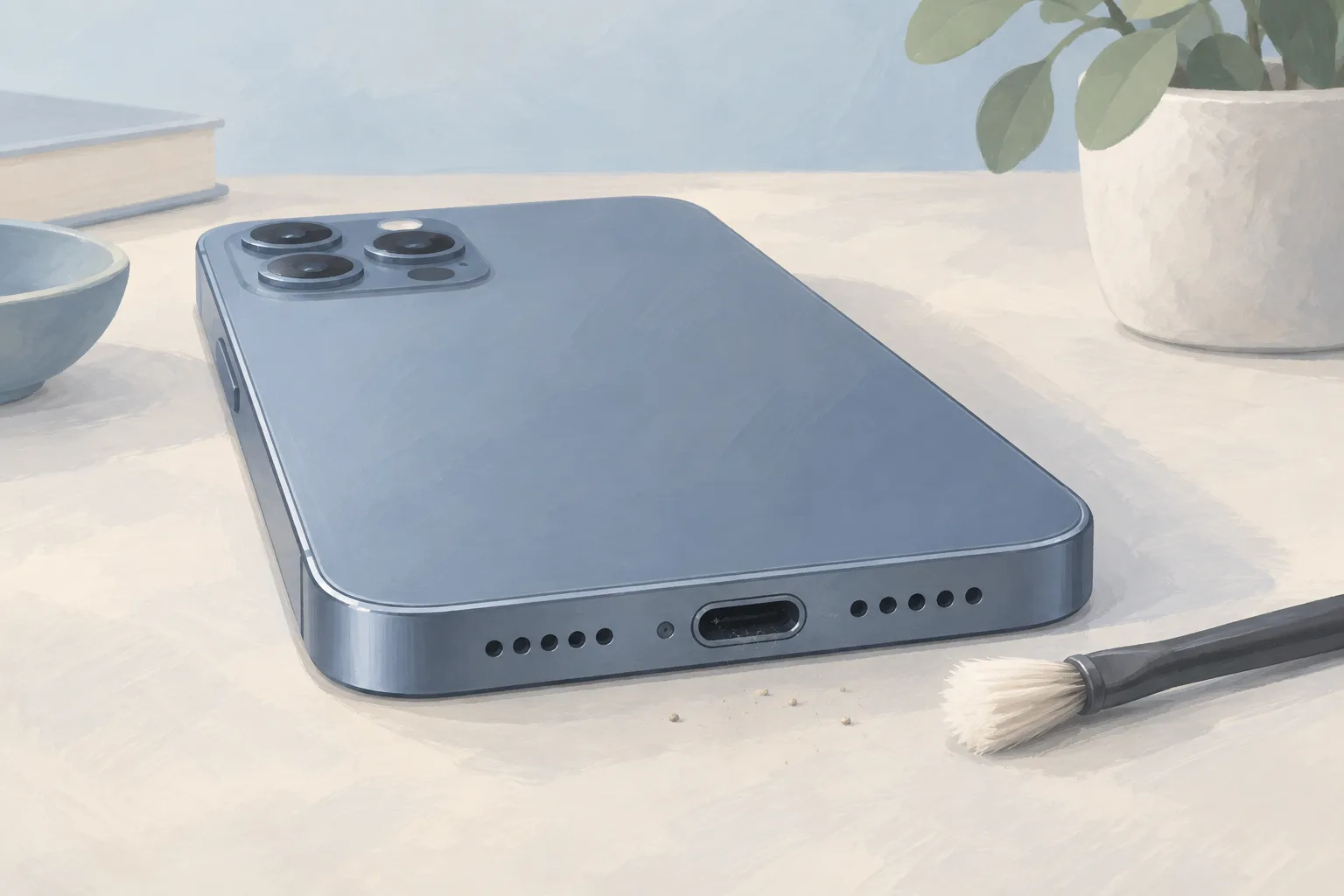
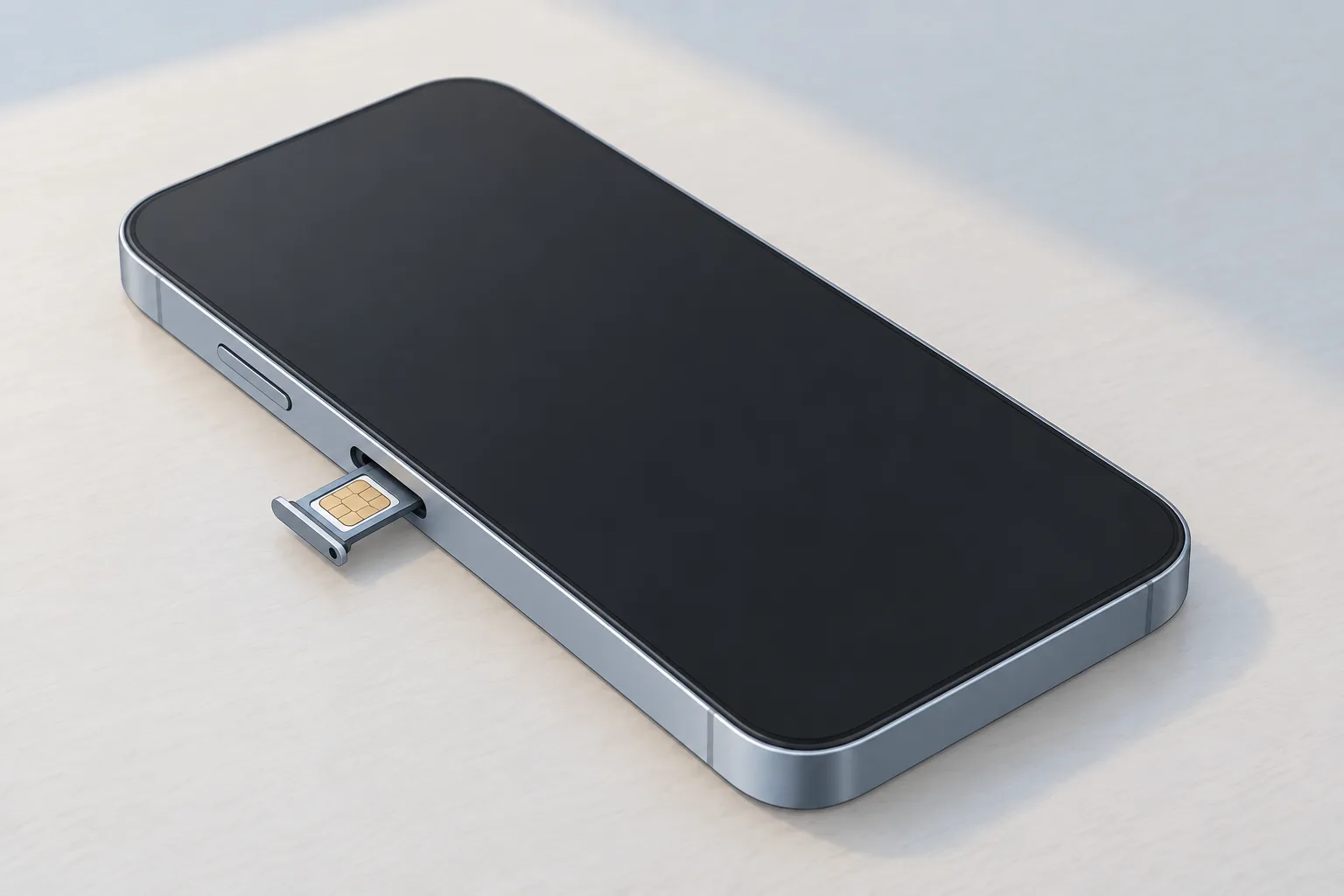
Remove the physical SIM card from its tray, then put it back in. Check that the tray closes completely. It shouldn't be loose. If you're using a SIM tray from a different iPhone model, an iPad or another phone maker, it might not fit properly.1
What if the message changes to No Service or Searching?
No Service or Searching in the status bar on your iPhone's screen means the phone isn't connected to a cellular network. Carrier or account issues might affect your service. If the cellular network is available, switching Airplane Mode on and off might let you reconnect.2
Keep Airplane Mode on for at least 15 seconds before turning it off. Update to the latest iOS version. If No Service remains after these checks, contact your carrier.2
For No Service or Searching on an iPhone running iOS 18 or later, download the latest Apple Support app to run extra checks. They might help find the cause. The feature is available in the United States, Australia and Canada.2
When should you take your iPhone to a shop?
If you're still seeing a SIM alert after you've worked through Apple's checks, your iPhone might need service. For No Service, iPhone repair might be needed if your carrier confirms there's no account or network issue and a hardware fault is suspected.1, 2
| Fix | Price | Shop or DIY |
|---|---|---|
| Restart the iPhone | Free | DIY: Apple includes a restart |
| Carrier settings update | Free | DIY: select OK or Update when prompted |
| Reseat the physical SIM | Free | DIY: remove and reinsert the card |
| Switch Airplane Mode on and off | Free | DIY: try if the cellular network is available |
| Update iOS | Free | DIY: install the latest version |
| Service for a persistent SIM alert | Ask a shop for a quote | Shop: the alert remains after the checks |
Questions
When should I ask my carrier for a new physical SIM?
With No Service or Searching, ask your carrier for a new SIM card if yours is damaged or won't fit its tray. You should also ask for a replacement if you transferred the physical SIM card into this iPhone from another device.2
How do I open Cellular Data Options with different SIM setups?
If you're checking No Service or Searching on an iPhone with a single SIM card or eSIM, turn on Cellular Data. Then tap Cellular Data Options. For Dual SIM or Dual eSIM, turn on Cellular Data, tap the number you want to change, then tap Cellular Data Options.2
Does a new SIM card need new carrier settings?
If you insert a new SIM card into your iPhone, you need to download the carrier settings for your new carrier. To see which version of the carrier settings is currently on your phone, look next to Carrier under eSIM.2
Find a repair near you
Sources
- If you see 'invalid SIM' or 'no SIM' on your iPhone or iPad, Apple. accessed Oct 7, 2026
- If you see SOS, No Service, or Searching on your iPhone or iPad, Apple. accessed Oct 7, 2026