iPad touch screen not working: What should you try?
For an iPad touch screen that's not working, restart the iPad as Apple recommends. Make sure the screen is clean, with no debris or water on it. If the screen still isn't working after these checks, Apple says you might need to set up service for your device.
Key takeaways
How do you restart an iPad that doesn't respond to touch?
For an iPad that doesn't respond to touch or has a frozen screen, Apple gives a restart sequence using the volume and top buttons. Start with the volume button closest to the top button on your iPad. Press and quickly release it.2
Press the other volume button
Use the one farthest from the top button. Release it quickly.2
Hold the top button
Wait for the Apple logo.2
For an iPad with a Home button, press and hold both Home and the top button until you see the Apple logo on the screen.2
What if your iPad touch screen isn't working properly?
If your screen works after you remove an accessory, try a different outlet, cable, or charger, as Apple recommends. Remove any case or screen protector. Make sure the screen is clean and has no debris or water on it when you're checking why it doesn't respond to touch.1
What if the iPad gets stuck during startup?
Connect your iPad to a computer if it gets stuck on the Apple logo or shows a red or blue screen during startup. Keep it connected while using the buttons to reach the recovery-mode screen. For the Home-button sequence, hold Home and the top button together.2
With the top-button sequence, press and hold the top button until you see the Apple logo. Keep holding until the recovery-mode screen appears.2
Choose Update when the computer offers Restore or Update. Your computer downloads the iPad's software. If that takes more than 15 minutes, the iPad will leave recovery mode, and you'll need to repeat the steps to enter it.2
When should you take your iPad to a shop?
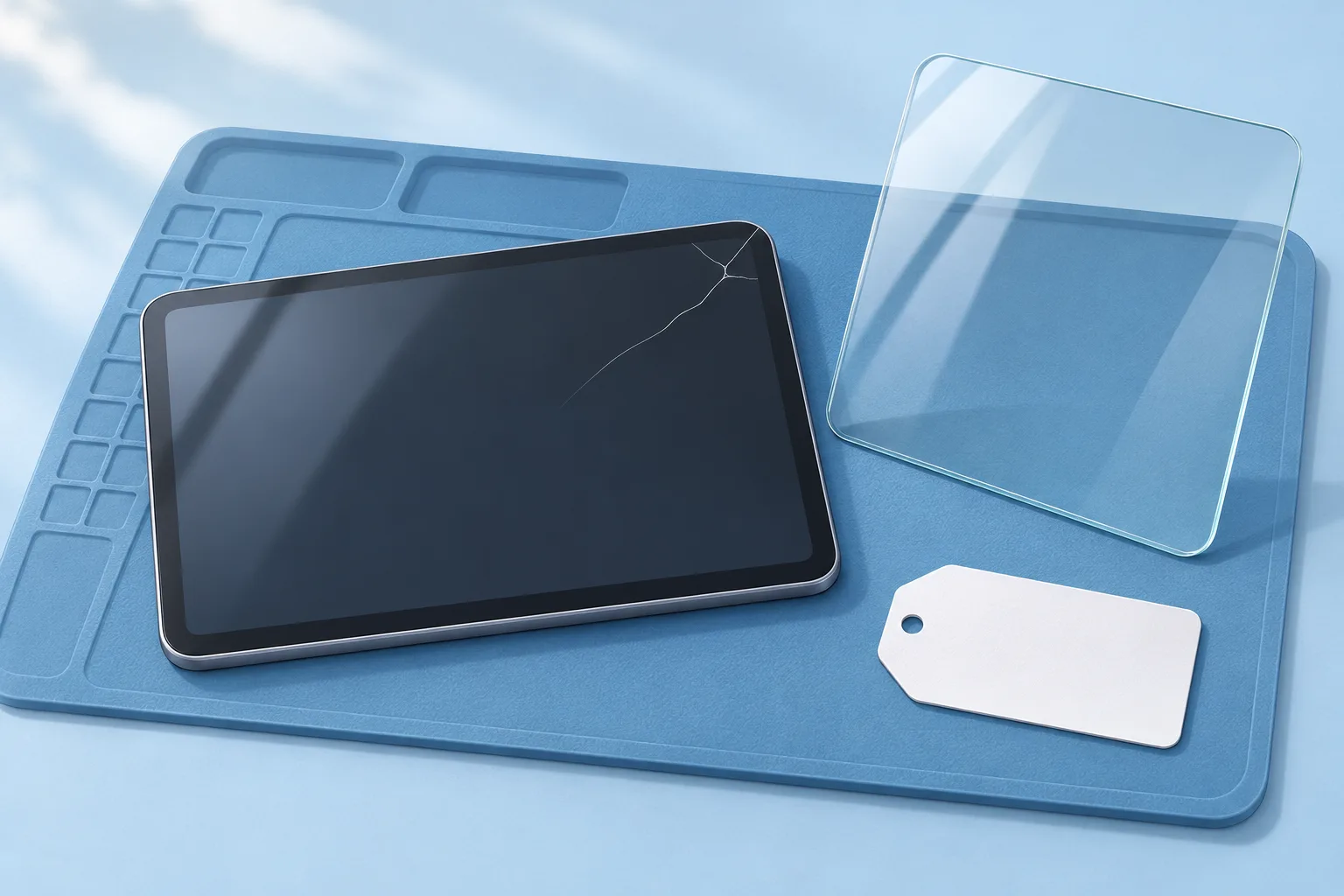
A screen that still isn't working after the checks might need service, Apple says. If the iPad doesn't recognize touch input, a bad touch screen is a possible cause. For that fault, iFixit calls for replacing the front panel, which includes the touch screen and digitizer.1, 3
| Fix | Price | Shop or DIY |
|---|---|---|
| Another outlet, cable, or charger you already have | Free | DIY: Apple recommends trying these if removing an accessory restores touch |
| Screen cleaning | Free | DIY: Apple says to remove debris and water |
| Case or screen protector removal | Free | DIY: Apple lists this check |
| Force restart | Free | DIY: Apple gives button steps |
| Update through a computer | Free | DIY: Apple gives recovery steps |
| iPad Screen Repair | Ask a shop for a quote | Shop: touch still isn't working after the checks |
| Logic board replacement | Ask a shop for a quote | Shop: replacing the front panel hasn't restored touch |
If replacing the front panel doesn't restore touch input, the logic board, the main circuit board, must be replaced.3
Questions
Will restoring an iPad erase everything on it?
Restoring an iPad erases everything on it. Save everything on it elsewhere before you restore it. For the startup message "Use iTunes to restore," connect your iPad to a computer with the latest version of iTunes installed to begin the restore.3
What if the iPad won't turn on at all?
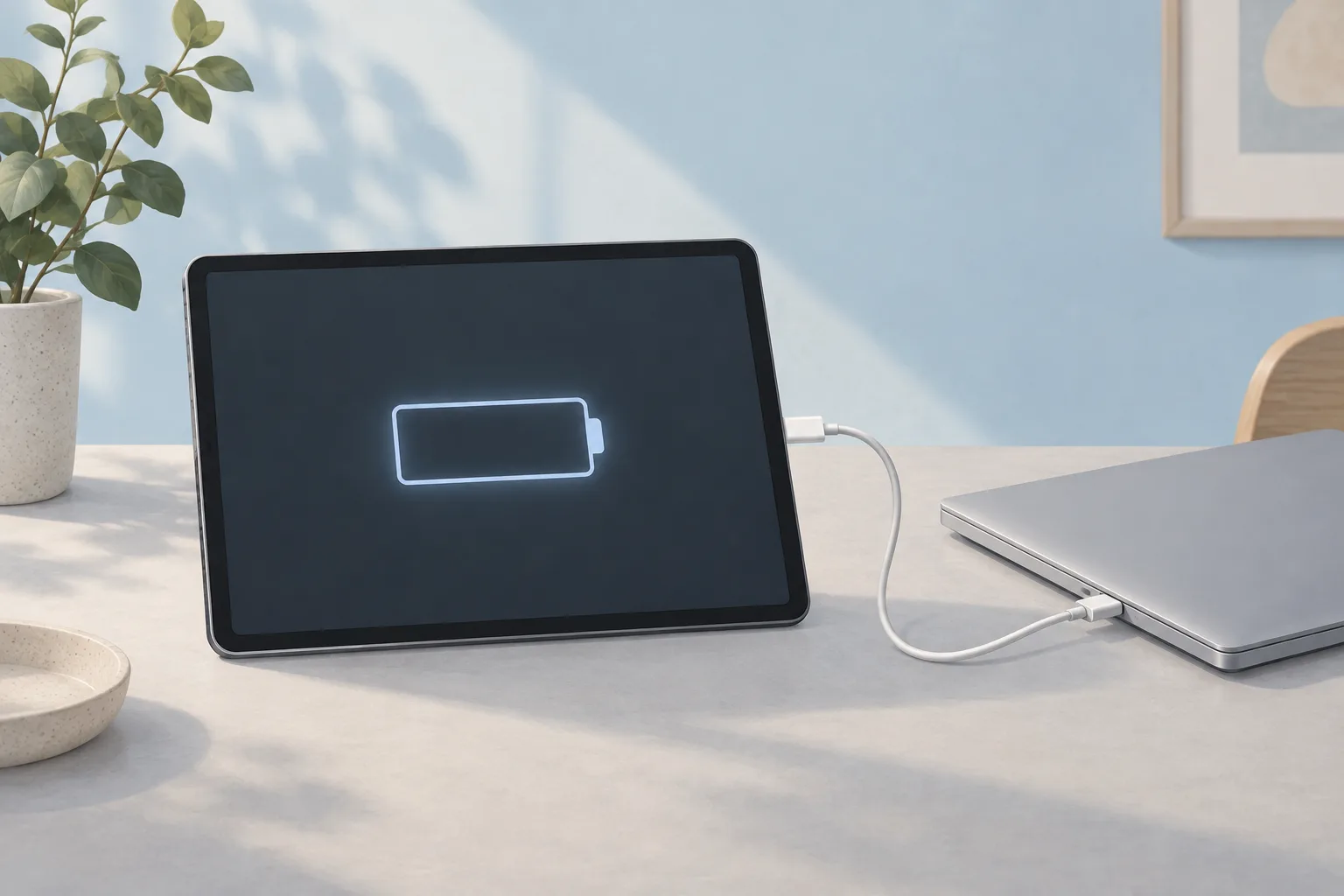
If your iPad won't turn on, check its hardware and charge it. You might need to charge it for up to an hour. Try a computer or power adapter. A drained battery is a possible cause when the iPad won't turn on, especially if you haven't used it recently.2, 3
Does a black screen mean the touch screen is bad?
With a working battery but nothing visible on the screen, your iPad may have a bad display that needs replacing. If neither the display nor the battery is at fault, check all the connections between the display and the logic board.3
Find a repair near you
Sources
- If the screen isn't working on your iPhone or iPad, Apple. accessed Oct 7, 2026
- If your iPad won't turn on or is frozen, Apple. accessed Oct 7, 2026
- iPad Troubleshooting, iFixit. accessed Oct 7, 2026