iPad says not charging: What should you check first?
For an iPad that says not charging, first connect its cable to an adapter plugged into working power, then try another adapter or cable and check its temperature. When charging stays slow with a clean port, the port might be faulty, and iFixit recommends replacing the charge port assembly.
Key takeaways
Why does my iPad say not charging when plugged in?
The message can appear when an iPad detects a charger that doesn't supply enough power to charge the battery. Charging speed depends on how much power a charger can supply, and a higher wattage can let the iPad charge faster. A bad cable can cause slow charging. So can a bad power brick.3
Repeated use of substandard chargers can damage the parts your iPad uses to charge.3
What should I try if my iPad says not charging?
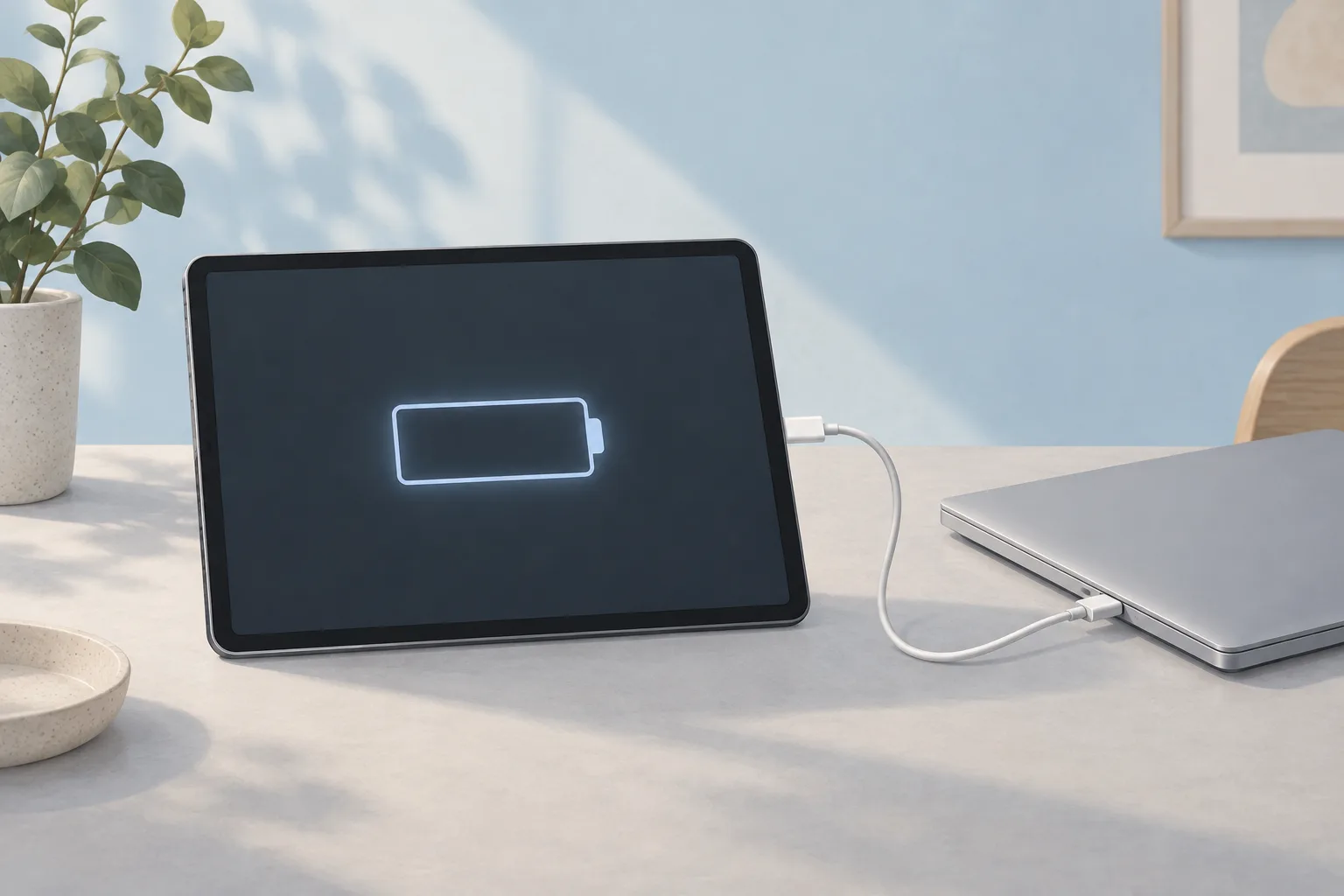
Connect your iPad's charging cable to a power adapter plugged into a working power source. Use the original cable and adapter if possible. Try a different cable or adapter. A compatible Magic Keyboard connected to working power is another option.1
Can heat cause an iPad not charging message?
An iPad in a very hot or cold place might not be able to charge. With iPadOS 16 and later, charging pauses when the device gets too hot or cold. Move an overheated iPad somewhere cooler. Keep it out of direct sunlight.2
The Charging On Hold notice appears on the Lock Screen and in Settings, then Battery. Charging resumes when the device returns to normal temperature.2
How do you force restart an iPad that won't charge?
If your iPad still won't charge after the power and temperature checks, Apple recommends a force restart. For an iPad with a Home button, hold that button and your iPad's top or side button together until the Apple logo appears.1
Use the volume-button sequence
For an iPad without a Home button, press and quickly release the volume button closest to the top button. Press and quickly release the volume button farthest from the top button. Hold the top button until the iPad restarts.1
How do you check the charging port?
Debris can collect and get packed into the back of the charging port, so check the cable's fit if you're unsure what's inside. The housing should sit flush. Look where it meets the bottom of the iPad. Dust in the bottom speaker and microphone grilles can point to debris in the port.3
If you find debris, use a toothpick or another probe that doesn't conduct electricity to clear it.3
When should you take your iPad to a shop?
An iPad with a clean port that still charges slowly might need its charging port replaced. Burns or corrosion are also reasons to move from cleaning to a faulty-port check. Apple offers iPad battery service with fees that vary by model.3, 4
| Fix | Price | Shop or DIY |
|---|---|---|
| iPad Battery Replacement | Apple charges $99 to $199 (iPad) | Shop: Apple offers battery service |
| Different cable or adapter already on hand | Free | DIY: Apple recommends this check |
| Clear debris from the port | Free | DIY: use a toothpick or nonconductive probe |
| Force restart | Free | DIY: Apple recommends it if charging still fails |
| Replace the charge port assembly | Ask a shop for a quote | Shop: the port itself needs replacing |
Apple's estimates cover out-of-warranty service. Tax may apply.4
Questions
Can I charge my iPad from a sleeping computer?
A sleeping computer isn't one of Apple's listed power sources for charging an iPad. Turn it on and keep it awake. Its port must support USB 2 or later. In iFixit's explanation of slow charging, a computer's port acts as a 2.5 Watt charger.1, 3
How can I tell whether my iPad is charging?
When you plug in your iPad, a lightning bolt on the status bar's battery icon shows that it's charging. Check the Lock screen, too. A large battery icon on that screen is another sign that power is reaching the battery.1
Can an app make charging seem slow?
An iPad using a lot of energy can appear to charge slowly because it consumes power at close to the rate it receives charge. Poorly optimized or buggy software can drain the battery. If the problem starts suddenly, an app update or an iPad software patch may be involved.3
Find a repair near you
Sources
- If your iPad won't charge, Apple. accessed Oct 7, 2026
- If a Charging On Hold notification appears on your iPhone or iPad, Apple. accessed Oct 7, 2026
- iPad Slow Charge, iFixit. accessed Oct 7, 2026
- Apple Service and Repair for iPad, Apple. accessed Oct 7, 2026